
Job expenses
How to track material costs by job before leaving the supply yard
Record a material purchase, attach its receipt, and keep the cost under the right landscaping job in JobLit.
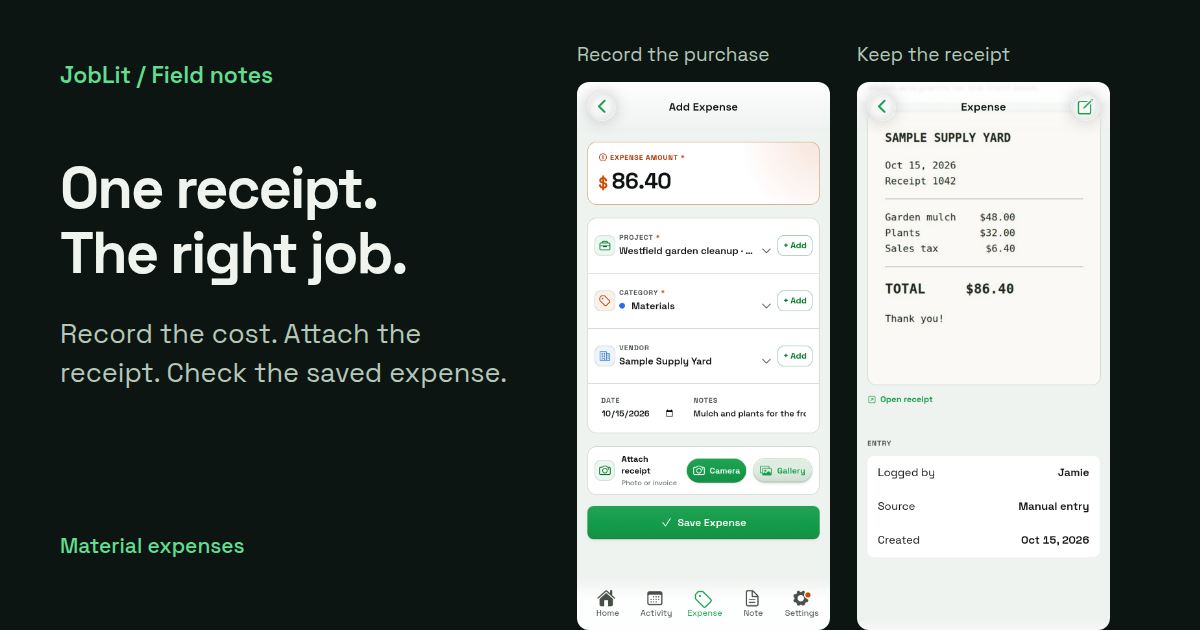
To track material costs by job, record each purchase while the receipt is still in your hand. Choose the job, enter the amount and category, attach the receipt, and save. In JobLit, you can do that from your phone at the supply yard, then check the saved record before putting the paper away.
A receipt tells you what you bought. The job attached to that receipt tells you where the money went. Make that connection at the counter, while you still remember which customer the materials are for.
Start with the job the materials belong to
This walkthrough is for a JobLit owner or admin. Start with an existing job in Preparing or Active status. A draft job needs to be ready for work before you can add its costs.
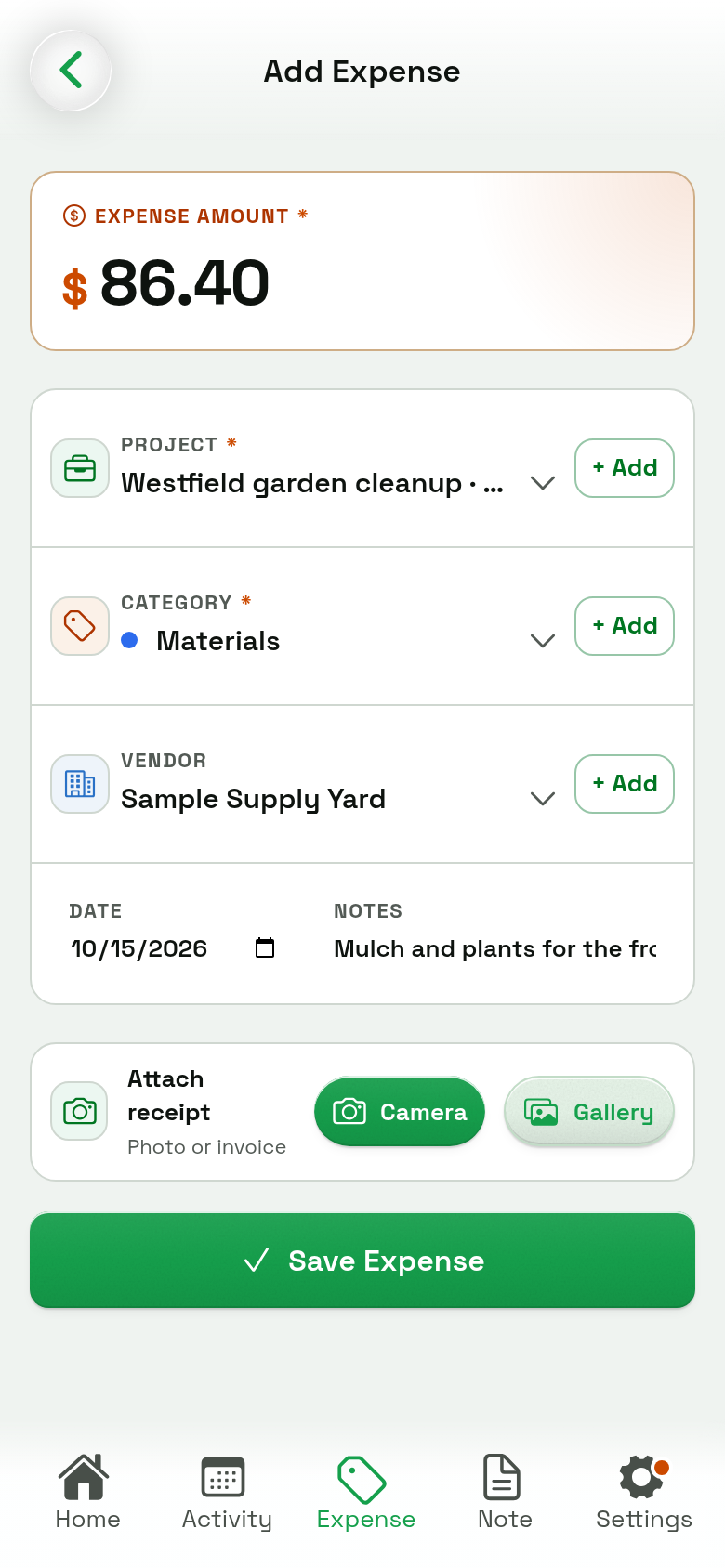
Open the expense form and check Project. When you open it from a particular job, that job may already be selected. Confirm the name anyway, especially if you have more than one stop or customer on today's route.
Record the amount, category, and date
Enter the total in Expense amount, choose the appropriate Category, and check the Date. The form defaults to today; change it if you are entering an earlier purchase.
For example, imagine buying mulch and plants for a garden cleanup. Your record might look like this:
Vendor and Notes are optional. Add them when they will help you recognize the purchase later. A short description such as “mulch for the front beds” is more useful than “supplies.” Use your own categories consistently so similar purchases stay easy to review.
Attach the receipt before saving
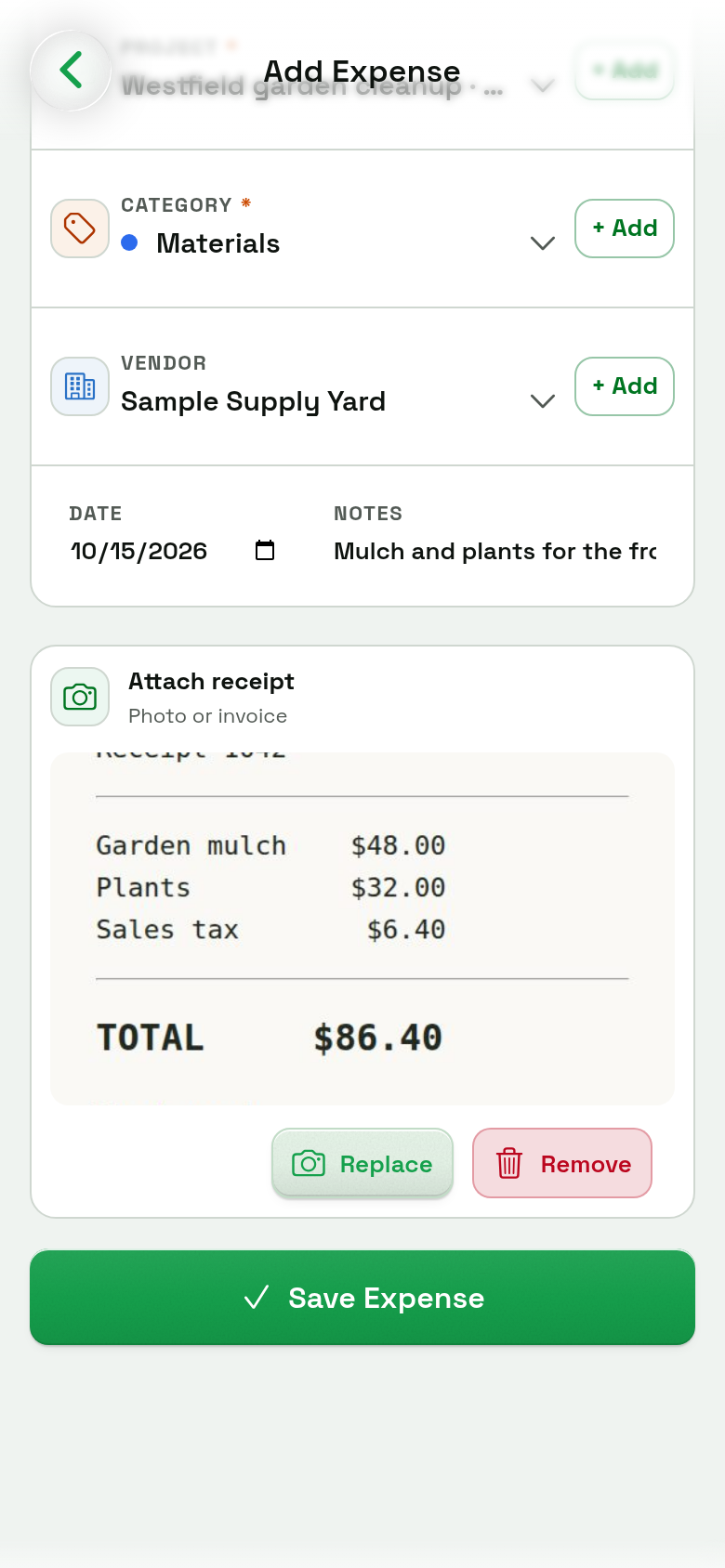
Under Attach receipt, choose Camera to take a photo or Gallery to select one already on your phone. Check the preview: the store name, purchase date, and total should be readable. Flatten the receipt and move out of glare if the numbers are hard to make out.
The photo supports the expense record; enter the amount and other fields yourself. Then select Save Expense.
Open the saved expense and check the result
Before you leave the supply yard, open the saved expense and confirm three things:
- The purchase belongs to the correct job.
- The amount, category, and date match the purchase.
- The receipt image is attached and readable.
Receipt photos use your workspace's available storage. If an attachment is skipped because of a storage limit, the expense can still save. Read any message and check the saved record before assuming the image is there. Keep the original receipt according to your usual record-keeping process.
Watch an expense go from entry to saved record
This short, silent walkthrough shows the same purchase: amount, category, vendor, receipt attachment, and the saved expense. Use the playback controls to pause or replay a step.
Steps shown: enter $86.40 on Westfield garden cleanup, choose Materials and Sample Supply Yard, add a note and receipt, select Save Expense, and open the saved expense.
Make the supply stop the reminder
The useful habit is simple: record the purchase before the receipt goes into a pocket, truck door, or bag. You do not need to reconstruct the whole week to capture the cost you just paid.
Next time you buy materials, start with one job and one receipt. When you review that job later, the purchase will already have a place in its cost record.